How to Fix SASSA Biometric Verification Errors Step by Step
SASSA biometric verification errors can be frustrating, but most of them can be fixed if you follow the process carefully. The main causes are usually incorrect personal details, a missing verification link, phone-number problems, or a system issue on SASSA’s side.
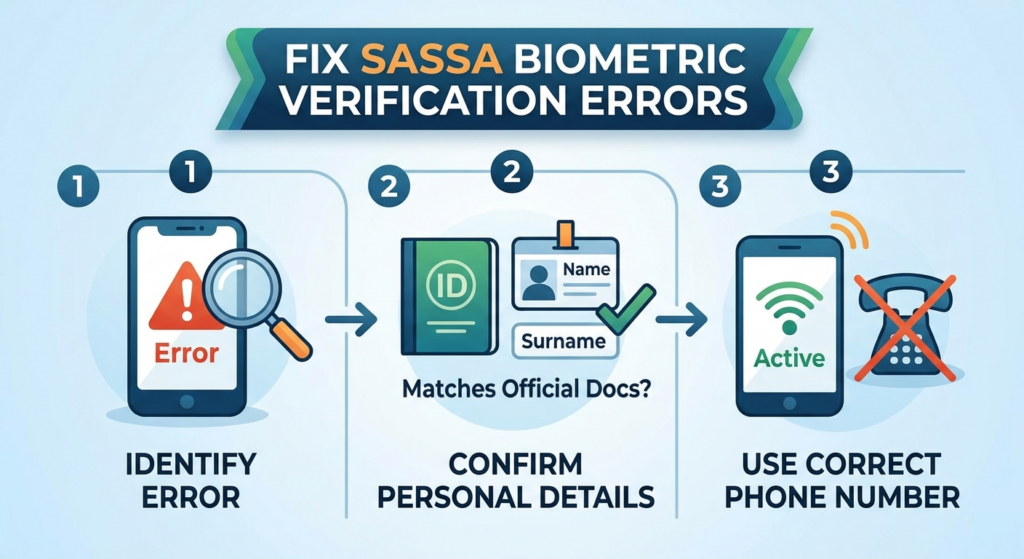
* Step 1: Check the exact error
First, identify what kind of error you are seeing. If the message says identity verification failed, it usually means your ID details, face scan, or records could not be matched properly. If the problem is that you never received the verification link, the issue may be with your phone number or with the system generating the SMS.
* Step 2: Confirm your personal details
Make sure your ID number, name, and surname are exactly the same as the details on your official documents. Even a small spelling mistake or a wrong digit can stop the verification process. If you changed your surname, mobile number, or bank details recently, update them before trying again.
* Step 3: Use the correct phone number
SASSA often sends the biometric verification link by SMS, so your current number must be active and accessible. If the number on record is old, lost, or no longer in your name, you may need to update it through official SASSA channels before the process can continue.
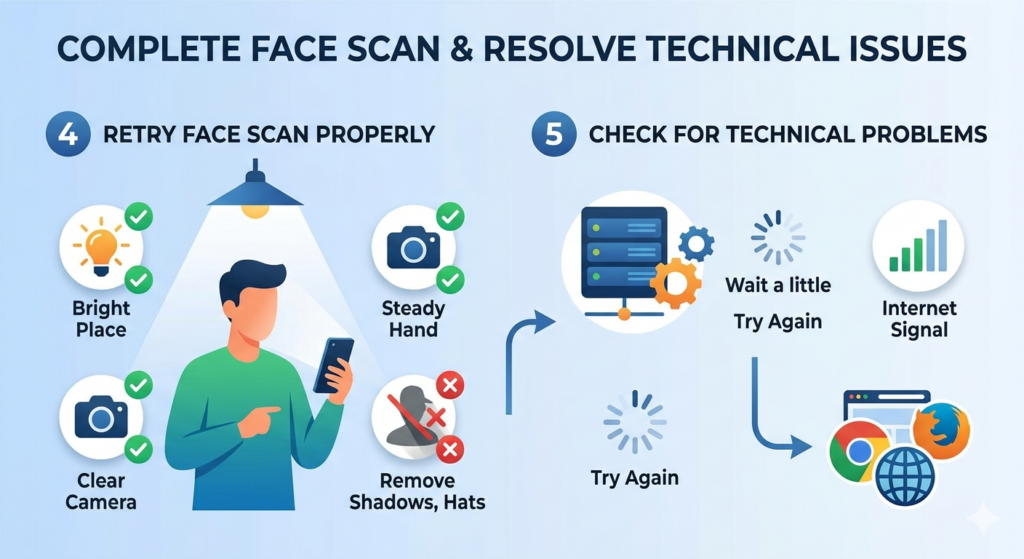
* Step 4: Retry the face scan properly
When the link arrives, complete the selfie or facial recognition step in a bright place with a clear camera. Hold the phone steady, face the camera directly, and avoid shadows, hats, or anything that blocks your face. A blurry image or poor lighting can make the system reject the attempt even when your details are correct.
* Step 5: Check for technical problems
If the portal does not open, times out, or keeps freezing, wait a little and try again later. SASSA has already dealt with self-service and e-Life system glitches, so temporary technical failure may not be your fault. Using a stronger internet connection or a different browser can also help.
* Step 6: Visit a SASSA office if it still fails
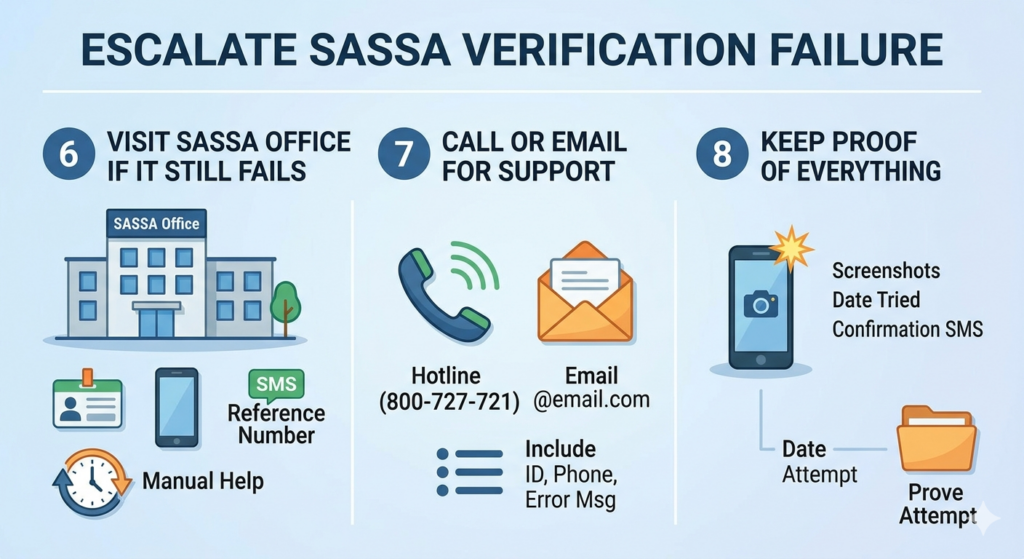
If repeated attempts do not work, go to the nearest SASSA office for manual help. Reports and guidance published in recent years show that beneficiaries who cannot complete biometric verification online are often advised to contact SASSA directly for assistance. Bring your ID document, cellphone, and any SMS or reference numbers you received.
* Step 7: Call or email for support
If you cannot visit an office immediately, contact SASSA through its hotline or official email channels for help with the biometric link or verification failure. Keep your explanation short and clear, and include your ID number, phone number, and the exact error message.
* Step 8: Keep proof of everything
Save screenshots of the error, the date you tried, and any confirmation SMS you received. This can help if you need to follow up later or prove that you attempted the process on time. It is also useful if your grant is delayed while the issue is being reviewed.
Extra tips to avoid repeat errors
•Try not to rush the process, and do not submit the form multiple times in a row unless instructed.
•Check that your phone battery is charged, your camera is working, and your details are current before you start. If your biometric check keeps failing, the problem may be with the identity records being used, which can require manual correction.
The safest approach is to fix the basics first: correct details, active phone number, good camera quality, and stable internet. If that still does not solve it, escalate the issue through SASSA’s official support channels instead of waiting too long.